AI-generated, human-reviewed.
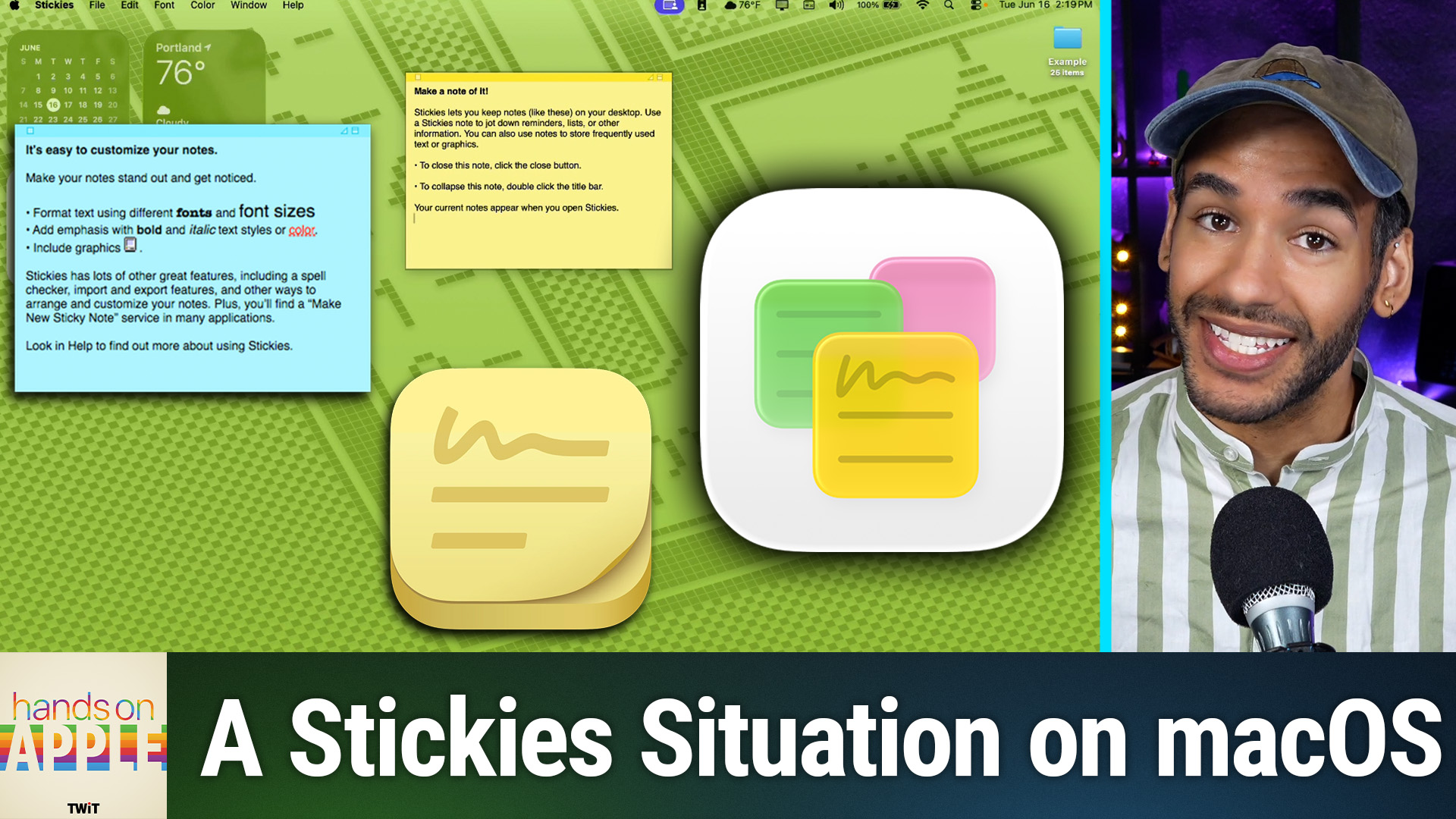
The Stickies app included with every Mac delivers fast, always-visible notes without unnecessary complexity or setup. On Hands-On Apple, Mikah Sargent explained why Stickies still earns its place on your desktop as a friction-free alternative to feature-loaded note apps.
What Makes Stickies Unique
While many Mac users migrate to multifunctional apps for notes and tasks, Stickies provides a lightweight, local solution. There's no account to manage, no menu maze—just open the app and your notes are there.
Mikah Sargent highlighted Stickies' instant-on design, its basic but flexible formatting, and its visible presence. Unlike Apple Notes or Reminders, Stickies keeps your snippets, reminders, or lists literally on your desktop so you don't forget them.
Features and Benefits
- Free and pre-installed on every Mac with no downloads needed.
- Loads instantly and requires no setup.
- Create and pin notes ("stickies") directly on your desktop.
- Supports rich text: bold, italics, font size changes, color adjustment, and even image embedding.
- Six background note colors to visually categorize your notes.
- Notes can be set to always float above other windows or made translucent for less distraction.
- Features like find and replace, import/export to Apple Notes, and basic printing are supported.
- No syncing or cloud dependencies as stickies stay local for quick, ephemeral notes.
How to Use Stickies: Practical Steps
- Launch Stickies: Find it in your Applications folder or search with Command + Space > "Stickies".
- Create a Sticky: Press Command + N for a new note—type right away, no prompts or folders.
- Format Text: Highlight and use the Format menu to adjust font, style, color, and even add images or links.
- Organize by Color: Hold Command + 1–6 to change sticky background color for quick context (work, home, shopping, etc.).
- Keep Notes Visible: Under the Window menu, select "Float on Top" to have notes always visible, or "Translucent" for see-through notes.
- Manage Notes Easily: Collapse notes by double-clicking the top bar; delete notes with the close button.
- Export or Print: Move sticky contents into Apple Notes or print as needed.
Stickies vs. Other Note Apps
- Apple Notes: Ideal for long-term, organized notes, cloud sync, and multimedia. More complexity.
- Reminders: Best for to-dos with notifications and device syncing.
- Third-Party Note Apps: Feature-rich, often require subscriptions, advanced collaboration, or cloud storage.
Stickies is different: It's minimal, instant, doesn't sync, and is always right on your desktop for things you need at a glance.
Pros & Cons
Pros:
- Zero setup, zero learning curve.
- Instant access and visibility.
- Strong formatting options for a basic app.
- Free and built into macOS.
- Lightweight and fast.
Cons:
- Notes do not sync across devices.
- No password protection or advanced security.
- Meant for temporary, non-sensitive notes. Data only on your local disk.
Who Should Use Stickies
According to Mikah Sargent on Hands-On Apple, Stickies serves users who:
- Want rapid, throwaway notes that don't require organization.
- Need info pinned to the desktop (e.g., tracking numbers, guest Wi-Fi passwords, short lists).
- Prefer simplicity over powerful features and syncing.
- Don't need cross-device access or encryption for these notes.
If you live in Apple Notes or collaborate on long-term projects, Stickies may not be enough. But for quick, friction-free reminders or temporary info? Stickies excels.
Will It Stick?
- Stickies offers instant, visible notes for your Mac's desktop, no complex setup or syncing.
- Features like color labels, rich text formatting, and floating/translucent windows help you stay organized.
- It's best for temporary reminders, info references, or lists that you don't want buried in bigger, more complex apps.
Stickies remains a valuable, built-in tool for any Mac user who wants hassle-free, always-there notes. If you thought you'd "moved on" from this classic app, give it another try—set up a sticky for a week and see if it streamlines your day.
Subscribe for more actionable Apple tips: https://twit.tv/shows/hands-on-apple/episodes/236