AI-generated, human-reviewed.
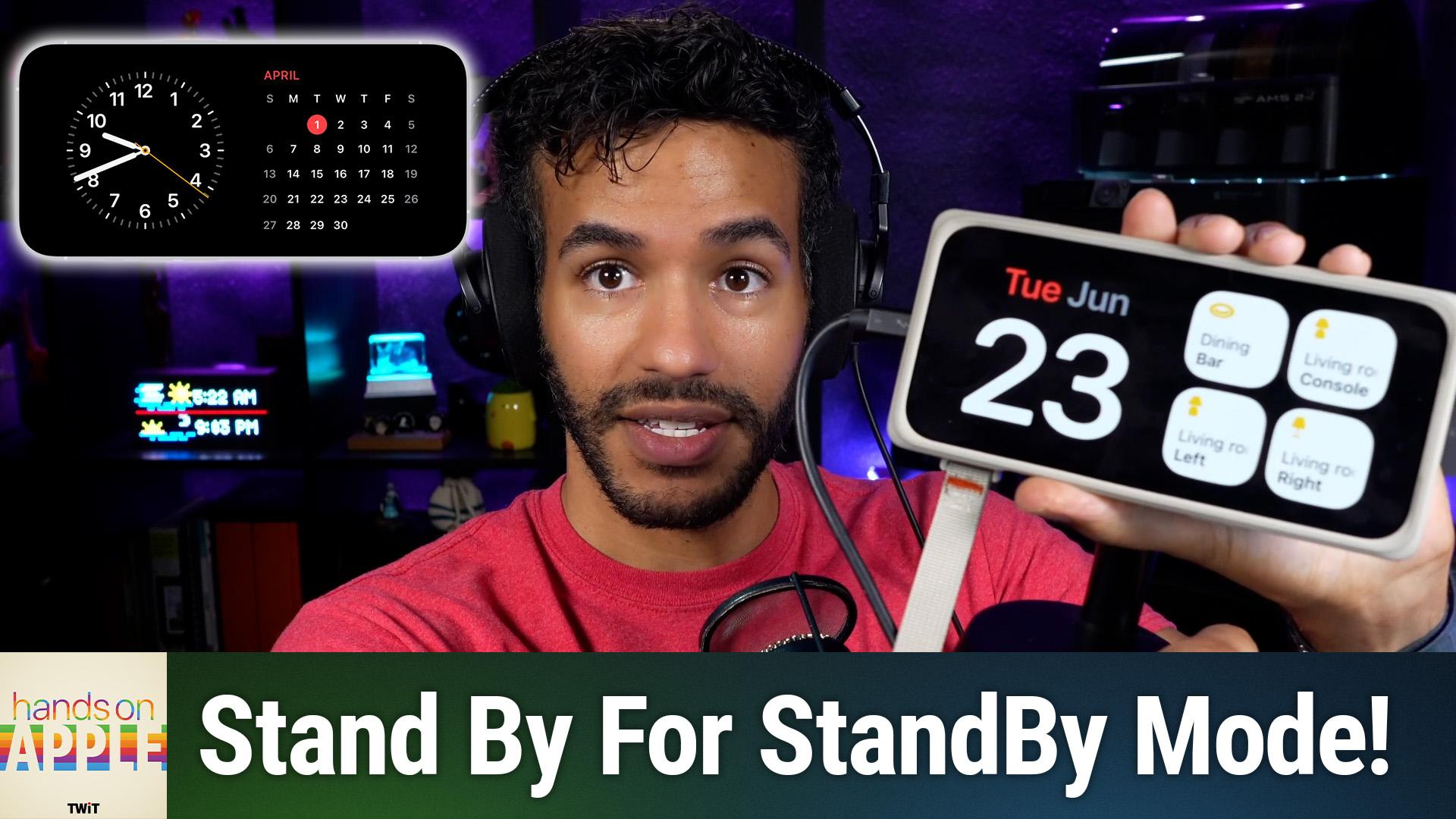
StandBy mode on the iPhone can turn your charging device into a smart display, offering clocks, widgets, photos, and more—all hands-free. Hands-On Apple's Mikah Sargent guides you through quick setup and customization so your iPhone serves you even while it charges.
What Is StandBy Mode on iPhone?
StandBy mode is a feature that activates when your iPhone is charging in landscape (horizontal) orientation. Instead of a blank screen, you'll see a large clock, calendar, smart widgets, featured photos, or even music controls.
It works on any iPhone that runs iOS 17 (iPhone 11 and newer), but is best experienced on models with an always-on display (iPhone Pro models).
- StandBy activates automatically when your iPhone is plugged in and placed on its side.
- You can display large, glanceable widgets, a clock, or your favorite photos.
- Customization options allow you to tailor StandBy for day, night, or different rooms.
- Always-on display iPhones keep StandBy visible continuously; other models show StandBy briefly with a tap or motion.
- Night Mode gives the display a red tint to minimize sleep disruption.
Setting Up StandBy Mode
On Hands-On Apple, [Mikah Sargent highlighted these steps:]
- Charge your iPhone and rest it sideways (landscape orientation).
This automatically triggers the StandBy screen. - Visit Settings > StandBy on your iPhone.
Toggle StandBy on.
Choose your display preferences (when it turns off, night mode, motion to wake, etc.). - Personalize StandBy Views:
- Widget Stacks: Mix and match widgets—weather, clock, reminders, calendar, even smart home shortcuts.
- Photo Frame: Display your favorite albums or curated themes.
- Large Clocks: Multiple styles with customizable colors or solar-based themes.
- Music & Live Activities: Now Playing and real-time activities (like timers or AirPods controls) show automatically.
- Edit Widgets and Views:
Long-press on any StandBy screen to add, remove, or rearrange widgets and photos.
Features Breakdown
Widget View
Create useful combinations, see the time, your next appointment, today's weather, or a running timer at a glance. Smart Rotate and suggested widgets help surface timely info.
Photos View
Showcase your own albums or let iOS pick memories to display. You can hide certain themes or only show selected albums for a personalized experience.
Clock View
Choose from classic digital, analog, solar, or world clocks. Swap styles by swiping up/down on the clock screen and change colors to match your taste or room decor.
Night Mode
When your room is dark, StandBy's night mode applies a red tint to the screen for minimal disruption. Motion detection can wake the display if you move nearby.
MagSafe Stand Integration
With a MagSafe charging stand, your iPhone can remember different StandBy views for different locations! For example, a clock on your nightstand, widgets at your desk.
What This Means for You
StandBy mode makes your iPhone more useful when you're not actively using it, acting as a bedside clock, office dashboard, or digital photo frame.
It reduces distractions since you can glance for info instead of fully unlocking your phone, and helps you make better use of those idle charging moments.
- Perfect for people who want a no-cost, customizable smart display.
- Especially valuable if you have an iPhone with an always-on display.
- Useful at home, work, or anywhere you routinely charge your phone.
Understanding StandBy
- Easy to enable: All you need is a compatible iPhone, iOS 17, and a charging cable or stand.
- Highly flexible: Adjust settings for day/night, room, or your daily needs.
- Reduces interruptions: Glanceable data means less picking up your phone.
- Works with MagSafe memory: Location-aware customization for ultimate convenience.
StandBy mode is a simple but powerful way to make your iPhone a smart display, tailored to wherever you charge most. Spend a few minutes customizing your views, and you'll get info, clocks, and photos at a glance—no extra hardware or apps needed. Try setting up StandBy today and see how much more useful your iPhone can be without even touching it.
Subscribe to Hands-On Apple for more Apple tips and tutorials:
https://twit.tv/shows/hands-on-apple/episodes/237