
Love it or hate it, Android’s dark mode has one foundational flaw — an oversight in how it operates that keeps it from being a truly useful option for enhancing how you view your favorite phone’s display.
As it stands now, dark mode — the system-level setting that switches the overall Android interface and also the appearance of most apps into a darker, less white-centric motif — is mostly an on-or-off, take-it-or-leave-it situation. The choices for how and when it activates are shockingly low in contextual intelligence, which is especially odd when you consider how many sensors our modern mobile devices are sporting that could make that mode infinitely more helpful.
At long last, there’s now a better way — all thanks to the creativity of a crafty Android developer.
[Don’t stop here: Come check out my free Android Intelligence newsletter for three new things to try in your inbox every Friday — and my Android Notification Power-Pack as a special welcome bonus!]
Android dark mode — redux
So, first things first, for context: On many Android devices today, dark mode is just enabled out of the box, by default — as an always-on selection.
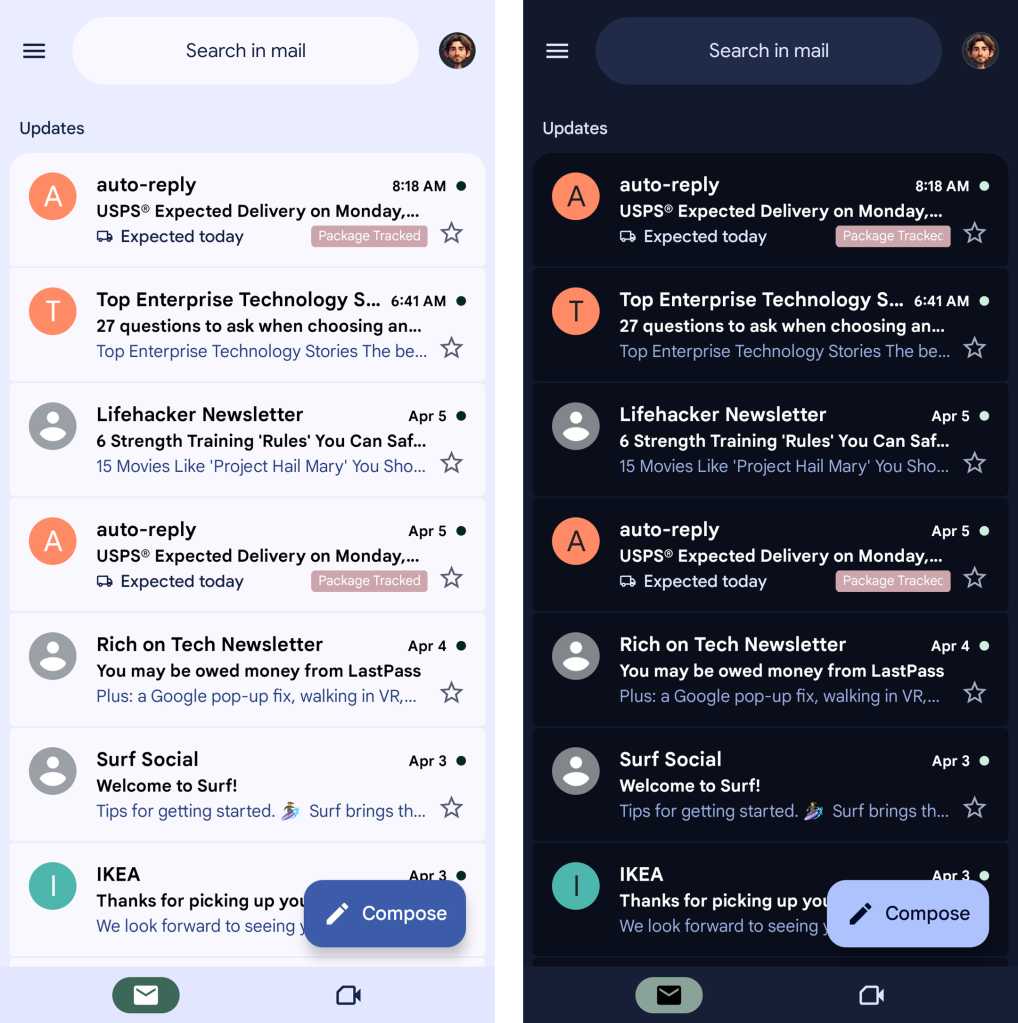
That means you’re seeing that darkened appearance across most everything you do on your device — more like the image on the right, using Gmail as an example, in contrast to the regular (non-dark) mode shown at left:
JR Raphael, Foundry
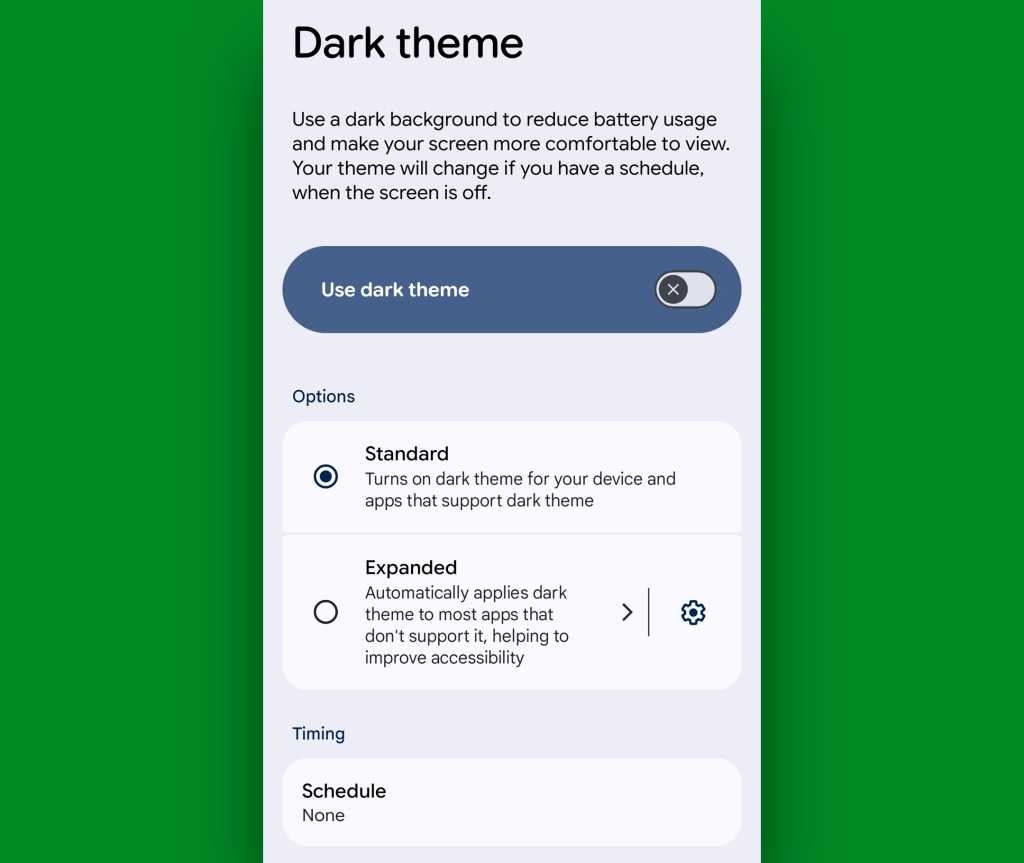
In Google’s Android system settings, you’ve got the option to turn dark mode on or off entirely, as you’d expect, and you also have the ability to set either a stable time-based schedule to switch it on and off at the same exact time each day or to automatically have it toggle on and off based on the sunset and sunrise, respectively, for wherever you are.
JR Raphael, Foundry
That’s all well and good, but if you don’t want to live in the dark all the time and would rather use dark mode as a selective state — seeing its dimmer, less glary approach when you’re in a dark room and your eyes are more sensitive to lighter colors but then sticking with the standard brighter interface style when you’re in a brighter environment — you don’t presently have any great way to predict that and make it happen in an intelligent way.
Sure, going with a set time schedule or the sunset-sunrise pattern is kinda-sorta close…ish. But in our electricity-aided, post-caveman era, just because it’s the evening hours or the sun has set doesn’t necessarily mean you’re in a dark place. So rather than relying on these mostly meaningless measures, shouldn’t Android’s dark mode be able to detect the level of light around you and activate dark mode for you when you’re actually in a dim environment, if you’d like — then disable it and stick with the standard light interface when you aren’t?
The answer is an unambiguous and enthusiastic yes, of course. And now, with the right little free add-on, you can enhance Android’s existing dark mode in exactly that way and make it instantly more intelligent — and effective.
The app is called Adaptive Theme, and all it does is run quietly in the background of whatever device you’re using to flip dark mode on or off automatically based on the level of light around you. It’s brilliantly simple and such a sensible and welcome upgrade, you’ll wonder why it wasn’t just natively available in Android in the first place.
The app does have a teensy bit of one-time setup that may seem daunting at first, but it’s actually quite easy to get through — and once it’s up and running, you’ll never actively think about it again. It’ll just do its thing in the background of your device and make your dark mode come on when you’re in a dim room and stay off when you’re in a brighter environment.
Ready?
2 minutes to a smarter Android dark mode
I promise: This isn’t difficult at all to do. You’re looking at roughly two minutes of one-time setup.
To start, just download Adaptive Theme from the Play Store. It’s free, without any limits or asterisks.
Once it’s installed, open ‘er up and follow the steps in the initial setup screens it shows you:
- First, the app will ask you to enable Android’s developer options, if you haven’t done that previously.
- That’s a special, typically hidden section of Android’s system settings with all sorts of advanced options that aren’t typically intended for average phone-usin’ folk to futz around with.
- There’s no risk to you or your phone with enabling ’em, and as long as you follow the instructions here exactly and enable only the one single setting this specific app asks for, it’s actually quite easy. (It’s also quite easy to undo, if you ever decide you aren’t into it and want to go back.) But we are pokin’ around in an area of Android that’s meant mostly for developers, and if you veer off-course and mess with the wrong setting, you could make a mess — so follow the steps closely, capisce?
- The app will direct you on how to enable those options. The process may sound strange — tapping your finger on a line that says “Build number” seven times — but I promise you, it works.
- With that out of the way, you’ll make your way back to the Adaptive Theme app, and you’ll find a prompt to enable an option within those developer settings called USB Debugging. Tap the “Open Developer Options” button, tap the search icon at the top of the screen that comes up next, and type USB Debugging into the search box.
- Tap “USB Debugging” in the list of results, then tap the toggle next to that same option and confirm you want to enable it.
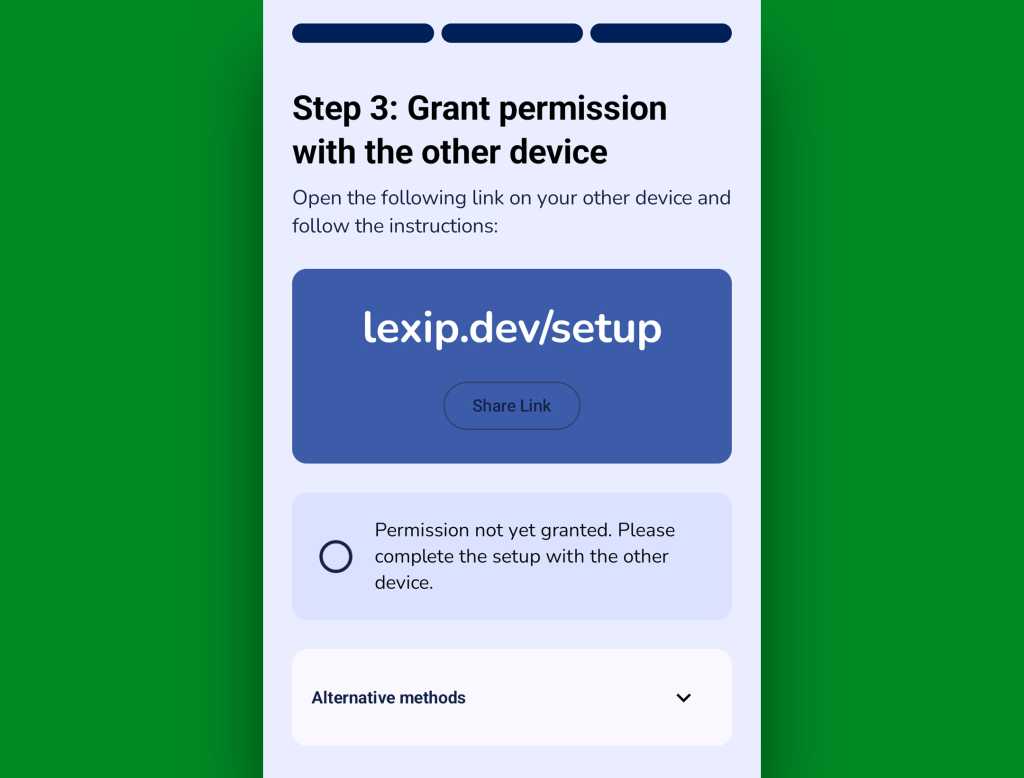
- Back in the Adaptive Theme app once more, you’ll see a prompt to connect your phone to another device to finalize the process.
JR Raphael, Foundry
- Again, this is a bit unusual — but, as the setup screen explains, it’s because the permission the app requires to control your dark mode status requires another device to activate it, since it isn’t something that most third-party apps are typically able to do.
- All you’ve gotta do is use a USB-C cable (like the one you rely on for charging) to plug your phone into a computer or even another Android device, then follow the prompt on your phone to open the website on the second device — where you’ll then tap “Start setup” followed by “Select device,” select your phone, and finally connect and confirm on both of the devices.
- And, as the app notes, nothing you’re doing here is permanent — and if you ever uninstall Adaptive Theme, it’ll all be automatically undone and revoked. I can confirm this is correct; once the app’s been uninstalled, in fact, you’ll have to go through the process again upon reinstalling it, as the permission will no longer be present and valid.
- It’s also worth noting that the Adaptive Theme app is completely open source, which means anyone with the right technical knowledge can peek directly at its code and confirm it’s doing exactly what it says — and nothing more.
Got all of that? Good — now, take a deep breath: You’re basically done!
At this point, Adaptive Theme will automatically assess the light level around you every time you turn your screen on, and it’ll then put you into dark mode if your environment is dark enough or into the standard non-dark mode if there’s enough light present.
JR Raphael, Foundry
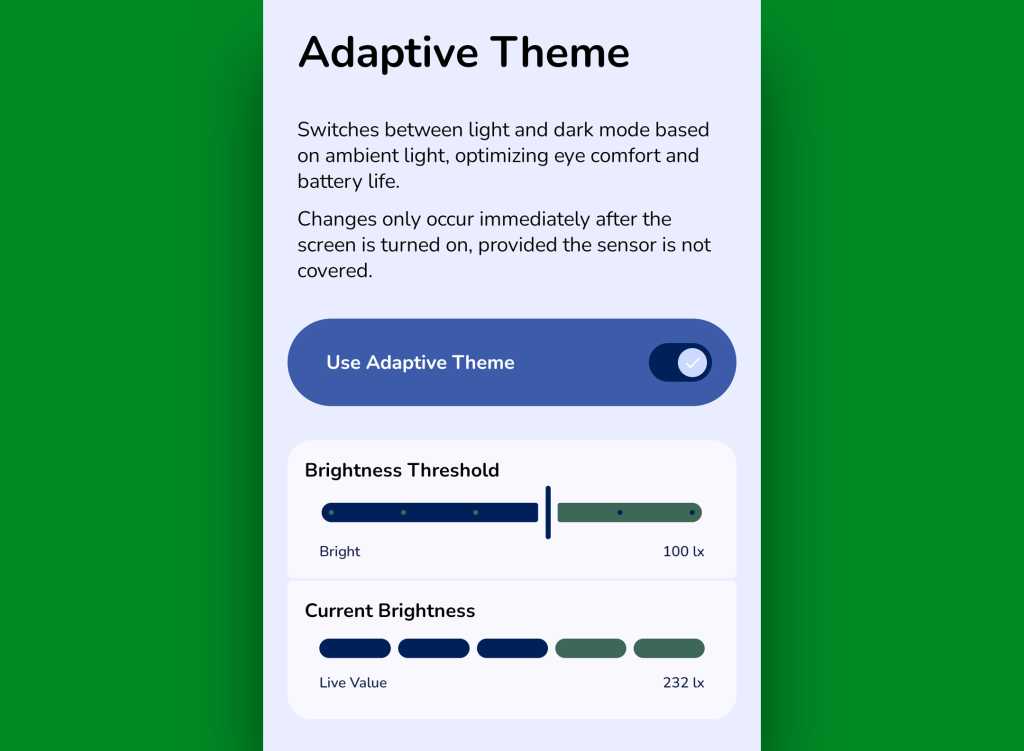
Personally, I find the settings it uses to make that determination slightly too skewed toward dark mode by default. I think it works better if you adjust the “Brightness Threshold” slider on the app’s main screen one slot to the left of where it begins, as shown above — which seems to make it so that any standard daylight or typical daytime lighting triggers the standard, non-dark mode while truly dim environments take you into the dark mode domain. But you can play around with that slider to find the exact level that feels right for you.
Just note that the switch happens only when you first turn your screen on — so even if your lighting changes, you’ll need to press your phone’s power button and then press it again to reset the detection and make any dark mode adjustments appear. (And, again: If you ever decide you don’t like the automatic dark mode switching, you can simply uninstall the Adaptive Theme app, and it’ll go right back to the way it was before — with the regular system settings and any schedules within it controlling your screen status.)
All that’s left is to enjoy your newly adaptive and intelligent dark mode setup — and wonder why it hadn’t been that way all along.
Keep the easy life upgrades coming with my free Android Intelligence newsletter — three new things to try every Friday and my free Android Notification Power-Pack today.