AI-generated, human-reviewed.
Looking to regain control over your notifications without missing what matters? Apple's Focus Modes let you filter out the noise with more flexibility than ever. On Hands-On Apple, Mikah Sargent broke down how to get started, customize your setup, and automate Focus for different parts of your day.
What Are Focus Modes?
Focus Modes are Apple's evolution of Do Not Disturb, offering a smarter way to silence certain notifications while allowing important messages through. Instead of an all-or-nothing switch, Focus provides separate profiles ("modes") for work, personal time, sleep, fitness, and more.
On Hands-On Apple, Mikah Sargent explained that Focus Modes let you create multiple, customizable configurations. You can filter notifications by people, apps, location, time, or simply what you're doing—making it easy to avoid distractions while staying available for urgent contacts.
Why Are Focus Modes Better Than Do Not Disturb?
While Do Not Disturb blocks nearly all notifications, Focus Modes give you precision control:
- Create custom lists of who and what can break through.
- Apply Focus rules to specific activities (like work, gym, or reading).
- Automate Focus to activate based on time, location, or app usage.
- Use presets for common needs (work, driving, sleep) or build your own from scratch.
Mikah Sargent highlighted that this flexibility means you're less likely to miss critical updates, like texts from family or urgent work Slack messages, while silencing group chats and promotional emails.
Getting Started: Setting Up Your First Focus Mode
Mikah Sargent offered a walkthrough for setting up Focus on iOS:
- Go to Settings > Focus on your iPhone or iPad.
- Choose a preset (e.g., Work, Sleep, Personal) or tap "+" to build a new Focus.
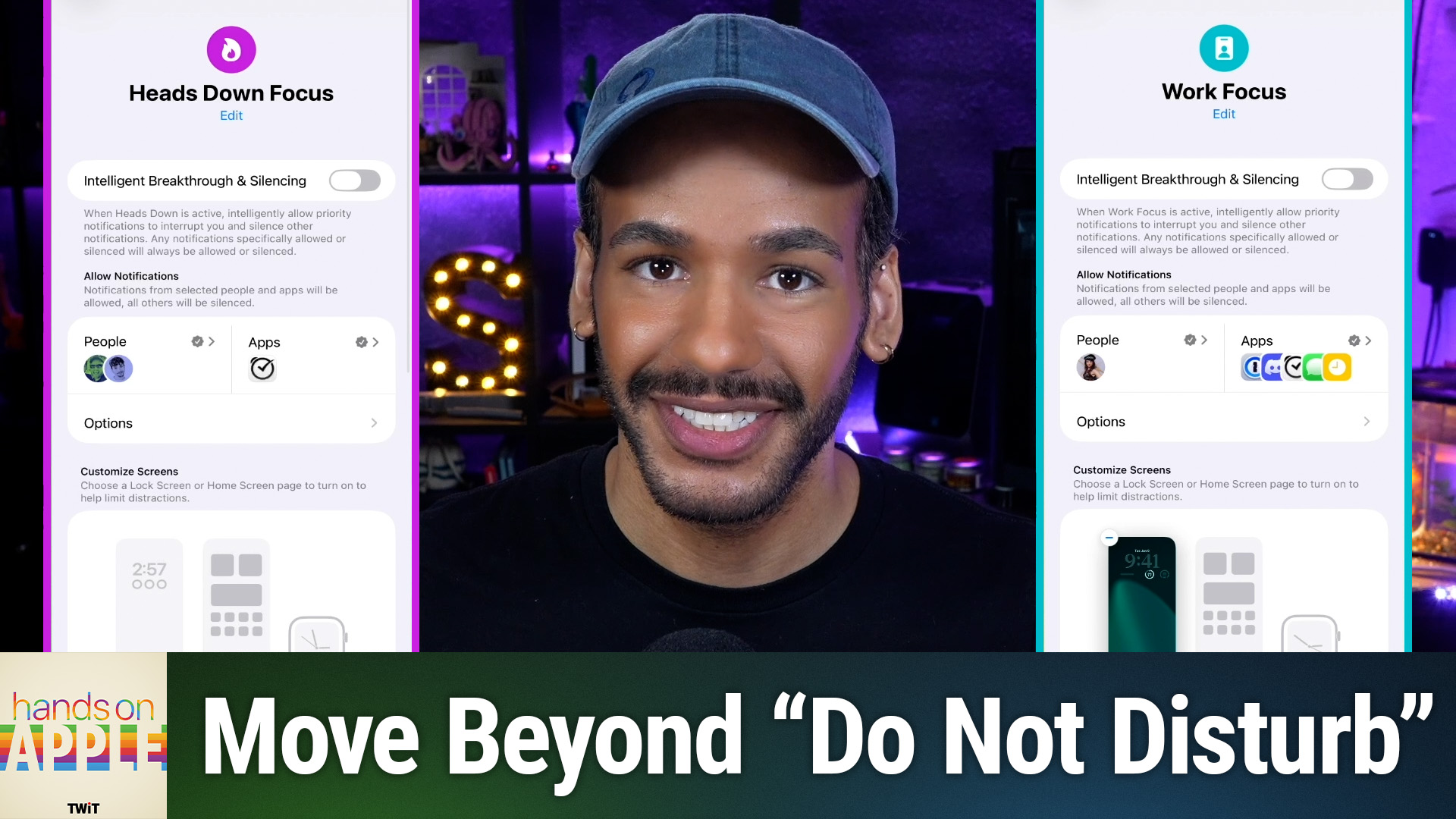
- Name your Focus, pick an icon, and assign a color for easy identification.
- Customize allowed notifications:
- Add specific people (e.g., manager, family) to your allow list.
- Add key apps (e.g., Slack, Calendar) that can push notifications.
- Set whether repeated calls can break through if urgent.
- Decide if "time-sensitive notifications" can bypass Focus rules.
- Adjust options for lock screen appearance and whether notification badges appear.
- Automate Focus activation:
- Schedule by time (e.g., 9am to 5pm on weekdays for work).
- Trigger by location (when you arrive at the office or gym).
- Start Focus when a specific app launches (e.g., Kindle or a writing tool).
- Try "Smart Activation," which uses your patterns, though reliability may vary.
Customizing Focus Modes for Real Life
For maximum benefit, Mikah Sargent suggested practical tips:
- Make a custom Focus for deep work ("Heads Down") that only lets your closest collaborators reach you.
- Automate your gym Focus to activate when you arrive, muting all notifications except essential health apps.
- Use app-based triggers so your "Reading" Focus starts when you open an e-book app.
- Adjust allow/block lists and triggers as you live with Focus over a few days.
Bringing It All Into Focus
- Focus Modes offer granular control over distractions, going well beyond the original Do Not Disturb.
- You can tailor notifications for any context: work hours, family time, exercise, deep work, and more.
- Automation lets Focus activate and deactivate without you having to remember.
- Use profiles and triggers to ensure you only see the alerts that matter, as all others are quietly collected for later.
- Trying different setups over a few days helps you dial in your preferences.
If you're overwhelmed by notifications or want more personalized control, Focus Modes are a tool to put boundaries back in your hands. They are ideal for professionals, students, parents, and anyone looking for more mindful phone use. Focus Modes reimagine notification management, letting you decide who and what gets your attention on your terms. Start with one or two profiles and experiment with automations to keep interruptions at bay without missing out on life's essentials.
Ready to level up your iPhone productivity? Try setting up a Focus Mode today and see the difference. Listen and subscribe for more practical Apple tips:
https://twit.tv/shows/hands-on-apple/episodes/226